> For the complete documentation index, see [llms.txt](https://developers.cryptopay.me/llms.txt). Markdown versions of documentation pages are available by appending `.md` to page URLs; this page is available as [Markdown](https://developers.cryptopay.me/guides/get-started-with-cryptopay/api-credentials.md).
# API Credentials
Once your Cryptopay account is verified, you can generate the API Key and API Secret that are required to authenticate the API and indicate the Callback settings.
{% hint style="info" %}
Note that only **Root** and **Admin** user roles can access the Integration and API Keys page.
Here is [*a quick article*](https://help.cryptopay.me/en/articles/3415142-multiple-users-in-a-business-account) on how to manage users in your Cryptopay account.
{% endhint %}
{% hint style="info" %}
If you are integrating through a cashier or third-party provider, keep in mind that you will need to provide them with your **API Key, API Secret, and Callback Secret**. For the **Callback URL**, use the URL provided by your cashier or provider. We recommend confirming these details with their integration team before completing the configuration.
{% endhint %}
## Set a Callback
You can create **Callback Secret and Callback URL** and also check Callbacks history in the Integration tab:
**Callback Secret** – in this field, you can view the secret for [validating callbacks](https://developers.cryptopay.me/introduction/callbacks#security) and generate a new secret if necessary\
**Callback URL** – in this field, you can specify the URL to which Cryptopay will send callbacks
## Create API keys
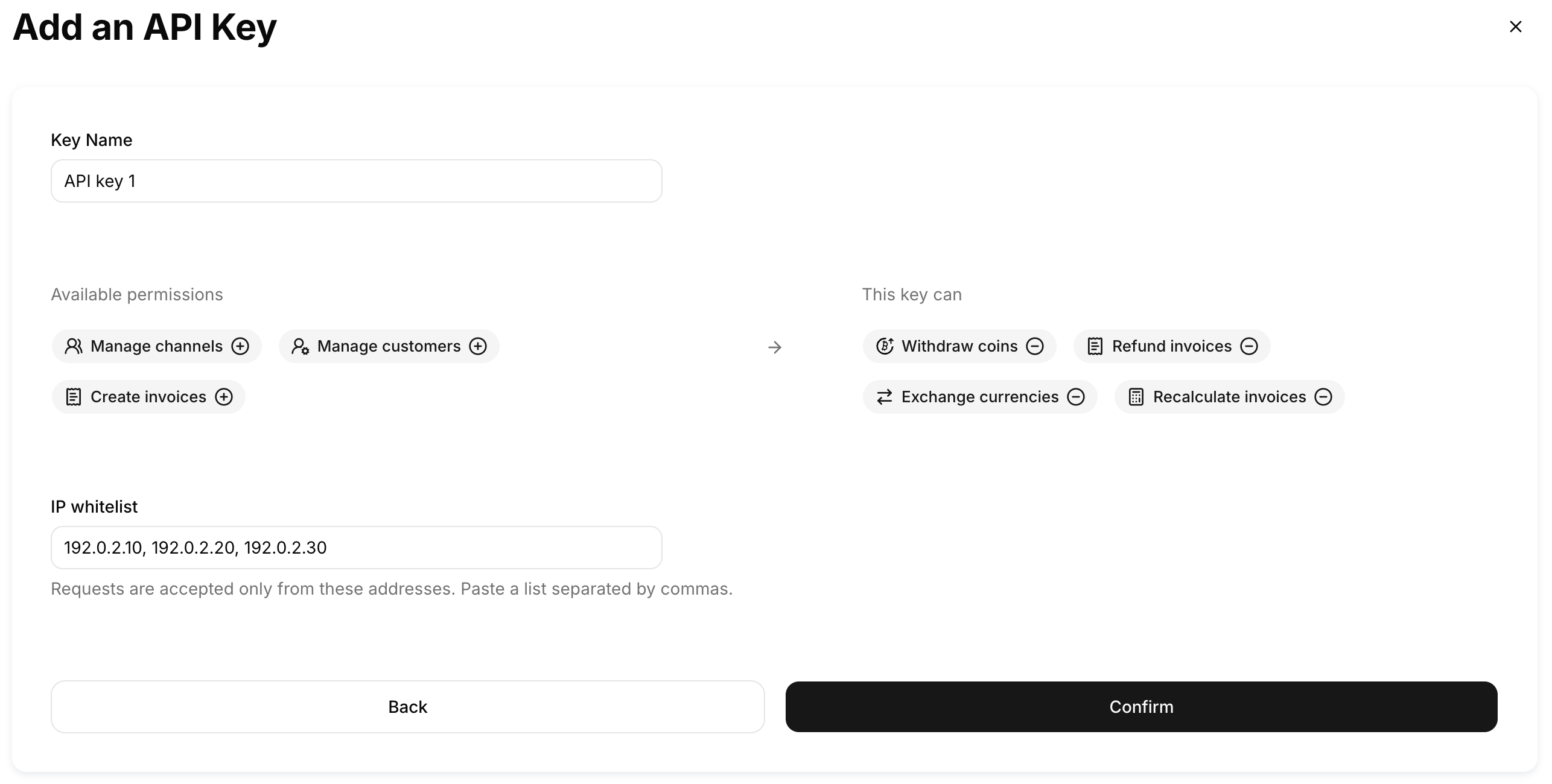
In the API Keys tab you can generate the **API Key** and **API Secret** to authenticate the Cryptopay API, specify the necessary permissions for the key to be created:
{% hint style="info" %}
If you want your API key to be read-only, for example, to retrieve transaction information, check transaction statuses, or retrieve transaction lists, you can leave all API key permission boxes unticked.
{% endhint %}
{% hint style="info" icon="exclamation" %}
The API secret should be stored on your side. Since **it is only displayed once**, you should write the API secret down or copy it into your application code immediately. If it is lost, you will need to delete the compromised API key and generate a new one.
{% endhint %}
## **IP Whitelisting**
For each API key, you need to add IP addresses to the whitelist for that key. You can list individual IPs separated by commas or use CIDR format, like this:
Individual IPs: 192.0.2.10, 192.0.2.20, 192.0.2.30\
CIDR range: 192.0.2.0/24
{% hint style="info" icon="exclamation" %}
Please note that if you are integrating through a cashier, you should whitelist the IP addresses from which the requests will actually be sent. We recommend checking with your cashier provider to confirm which IP addresses should be added.
{% endhint %}